
本篇文章主要是講解,如何在Cloudways主機上,針對WordPress的網站,放置Google AdSense要求的ads.txt檔案。如果使用WordPress提供相關的外掛,在後台直接輸入ads.txt內容,但因為遲遲沒有被Google AdSense 搜尋到,不妨試著直接將ads.txt檔案,傳送到Cloudways主機。
步驟一:下載ads.txt
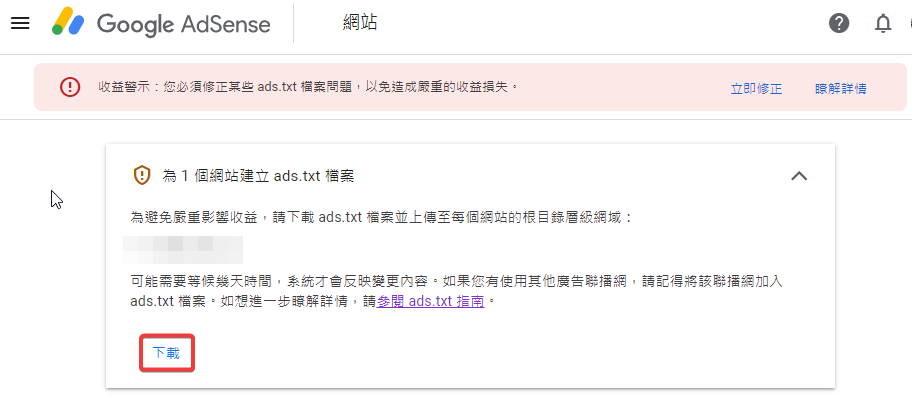
請回到Google AdSense 首頁,上方應該會出現淺紅色注意事項告訴你
收益警示:您必須修正某些 ads.txt 檔案問題,以免造成嚴重的收益損失。
此時,請點選右側的【立即修正】。

會出現下列說明內容,要求使用者為網站建立 ads.txt 檔案,點選下載後,將ads.txt予以儲存。
步驟二:至Cloudways主機確認FTP帳密
進入Cloudways主機首頁,點選【Servers】。
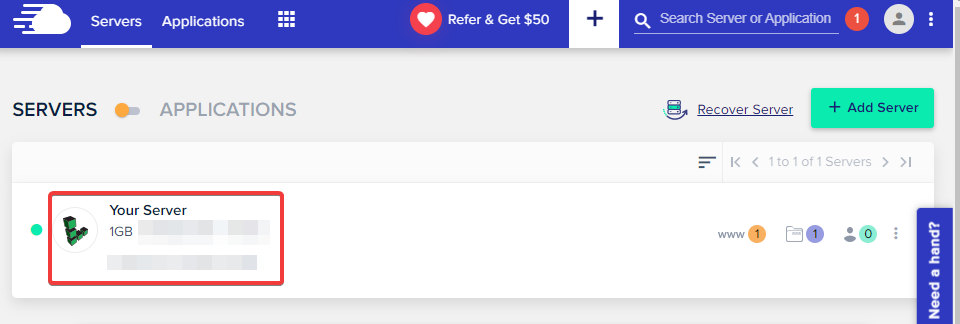
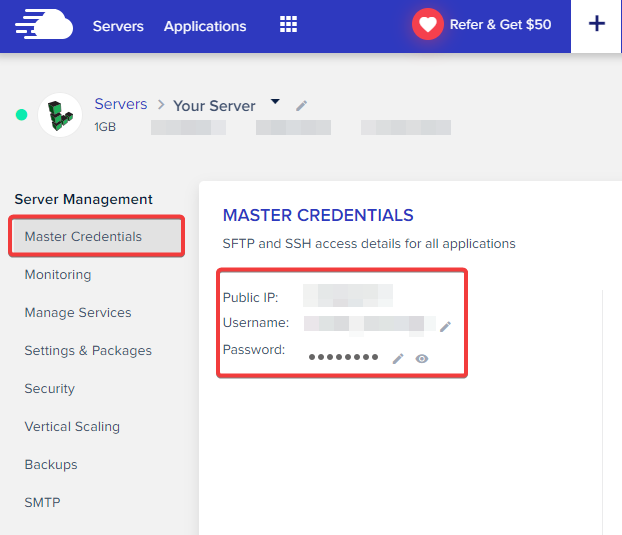
進入後,右方可以看到伺服器的Public IP、Username及Password。
步驟三:使用FTP軟體,連線至Cloudways主機
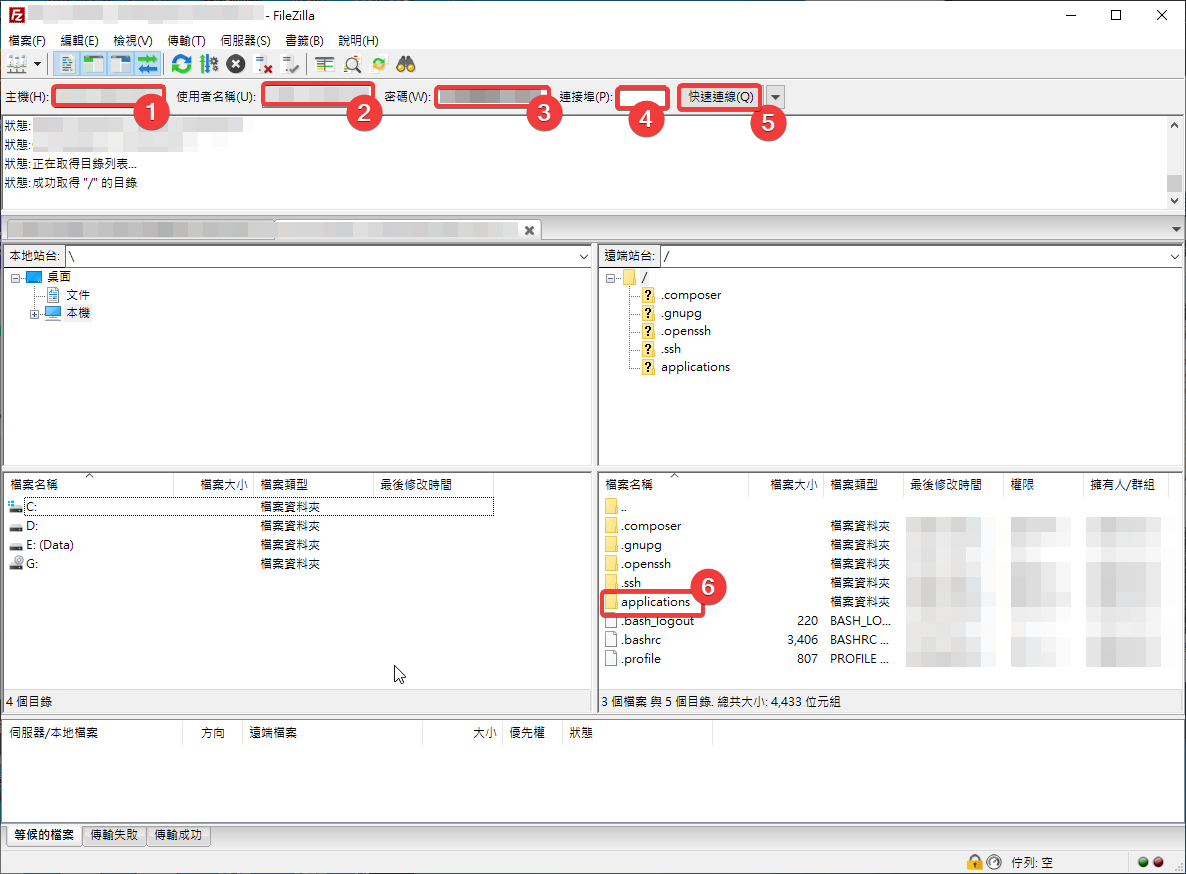
這邊使用的是FileZilla,官網:https://filezilla-project.org/
- Public IP填入【主機】
- Username填入【使用者名稱】
- Password填入【密碼】
- 連接埠填入【22】
- 點選【快速連線】,狀態顯示:取得”/”的目錄,即代表已經成功連到Cloudways主機
- 視窗右下方會有Cloudways主機上的資料夾,點選【applications】資料夾
進入後,應該會有一組亂碼的資料夾,就是放置WordPress的資料夾了

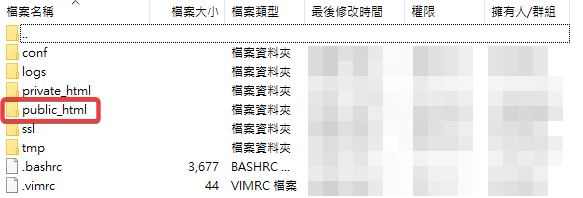
點選【public_html】資料夾,將ads.txt檔案複製貼上。
步驟四:等待Google AdSense抓取到ads.txt檔案
後記
原本是參考網路教學,外掛是使用【Ads.txt Manager】,但等了兩個禮拜,Google AdSense一直還是會跳出注意事項,111/11/08改用直接上傳Ads.txt,後續看幾日內會抓取到。
111/11/15已經沒有顯示收益警示,大概一個禮拜的時間會抓取到Ads.txt。




.png)